If you have already opened a chart or cast a new natal chart, then you can easily create a subsidiary chart which shows any of the transiting, secondary progressed, tertiary progressed or Solar arc directed planetary positions in relation to the angles of the current natal chart. This enables you to see how planetary influences change with time. For example you may wish to view where the transiting or progressed planetary lines for the current date appear in relation to your natal chart.
Note that these subsidiary lines are not the same as casting an ordinary transits or progressions chart for the current date. The difference is that when viewing these subsidiary charts on an astro-locality map, the natal chart angles are retained, so that the transiting or progressed planetary positions can all be seen relative to the natal chart’s angles. An ordinary transits chart, for example, would have a midheaven angle which depended on the time of day for which the chart was cast, and an ordinary progressions chart would have a midheaven angle which depended on the progressed solar arc in longitude (or progressed solar arc in right ascension, or whatever method of angle progression has been used in calculating the progressed chart angles). In contrast, subsidiary charts cast in Solar Maps always retain the natal chart angles.
Solar Maps will only allow you to cast a subsidiary chart if you have already opened a natal chart or cast a new natal chart. If the current chart is the astroclock, or a chart called “Transits”, or any kind of non-natal chart, then the Subsidiary Chart menu option will remain grayed out, and cannot be selected.
To cast a Subsidiary Chart:
Select the “Subsidiary Chart...“ item from the “Chart“ menu. This will display the “Subsidiary Chart” dialog box.
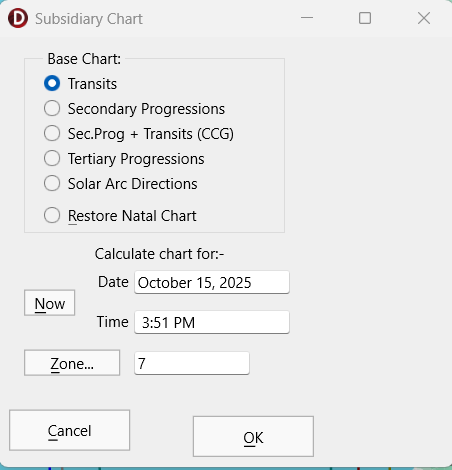
The types of chart which you can select to calculate, by clicking on the appropriate option button are as follows.
• Transits - This will calculate a chart containing the planetary positions for whatever date, time and timezone you specify, but will retain the chart angles of the base chart.
• Secondary Progressions - This will calculate a chart containing the secondary progressed planetary positions for whatever date, time and timezone you specify, but will retain the chart angles of the base chart. The secondary rate of progressions is based on the ratio of one day for one year which is 0.00273790926.
• Sec.Prog + Transits (CCG) - This will calculate a chart containing secondary progressed positions for the Moon, Sun, Mercury, Venus and Mars, but also containing transiting positions for all the outer planets and other chart points. This particular combination is the same as is used in Cyclo*Carto*Graphy.
• Tertiary Progressions - This will calculate a chart containing the tertiary progressed planetary positions for whatever date, time and timezone you specify, but will retain the chart angles of the base chart. The tertiary rate of progressions is based on the ratio of one day for one mean lunar month which is 0.03660109676.
• Solar Arc Directions – This will calculate a chart containing the solar arc directed planetary positions for whatever date, time and timezone you specify, but will retain the chart angles of the base chart. The solar arc is calculated according to the secondary rate of progressions which is based on the ratio of one day for one mean lunar month (0.00273790926). All the other chart points are directed by the same arc as the sun.
• Restore Natal Chart - This will restore the planetary positions of the chart to their original locations in the base chart. This option is useful if you have already calculated a subsidiary chart, and now wish to revert to viewing the original base chart.
To specify the date and time for which the subsidiary chart will be calculated, you can enter the required details into the following fields.
• Date - Enter the date for the chart. Most normally used date formats are acceptable. See Entering a Date for a description of valid date formats.
• Time - Enter the local time for the chart. Most normally used time formats are acceptable. See Entering a Time for a description of valid time formats.
• Zone - Enter a timezone abbreviation and/or time difference. See Entering a Time Zone for a description of valid timezone formats.
The buttons may used as follows.
• Now - Fills in the Chart Date and Time fields according to the computer’s internal clock. If the computer’s clock is not accurately set, then you can use the control panel’s Date/Time icon to reset it.
• Zone - Displays the TimeZone Selection screen from which a timezone may be selected. See Entering a Time Zone for more details.
When you have made the necessary selections and ensured the entered data is correct, you can display the chart.
Click on the “OK“ button.
The subsidiary chart will then be drawn onto the current map. The title bar on the main map screen will also be changed to indicate the type of subsidiary chart that you have selected eg. “John Smith - Transits 1 Oct 1996” or “John Smith - Sec.Progs. 1 Oct 1996”.