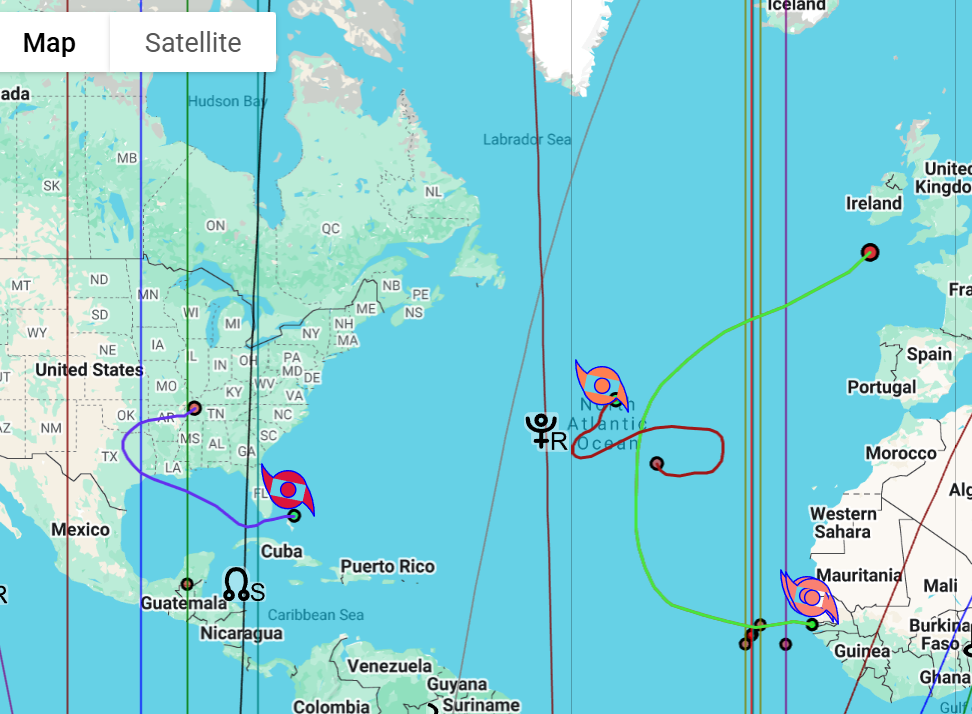
Track/event collection files have the extension *.smt, and their internal format is unique to Solar Maps.
Select the “Open Track Collection File…“ item from the “Track“ menu. This will display the “Select Tracking File to Open” dialog, displaying a list of files from which you can choose.
All of the track files are initially stored in SolarFireX\Solar Fire User Files\Maps directory, but if necessary, you can choose a different disk drive by selecting an item from the drop-down list of drive names, and look in a different directory by double-clicking on directory names in the directory list box on the left. For example, you may wish to select the E: drive if you want to open a track file which is stored on flash drive/USB.
Open a track file. This will display the “Select Plotting Events” dialog, displaying a list of tracks or events from which you can choose.
Note: the name of the file indicates the starting year, but may contain several years. Events within the year are numbered in chronological order.
IMPORTANT: There could be lots of information to choose from. So, please wait for these details to appear.
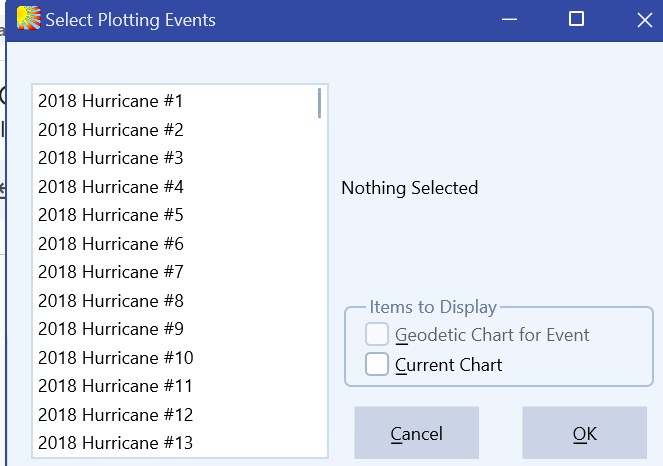
When you click on a track in the list box on the left, the details of that track or event will be displayed in the box at the right.
IMPORTANT: Please wait for these details to appear.
Additionally, you may select which of the following items to display by clicking on their check boxes.
• Geodetic Chart for Event - If selected, this will calculate the chart for the time of the event and display it geodetically. For an explanation of geodetic charts, see Selecting Zodiac Projection Type.
• Current Chart - If selected, the currently displayed chart will be retained and plotted at the same time as the track or event markers.
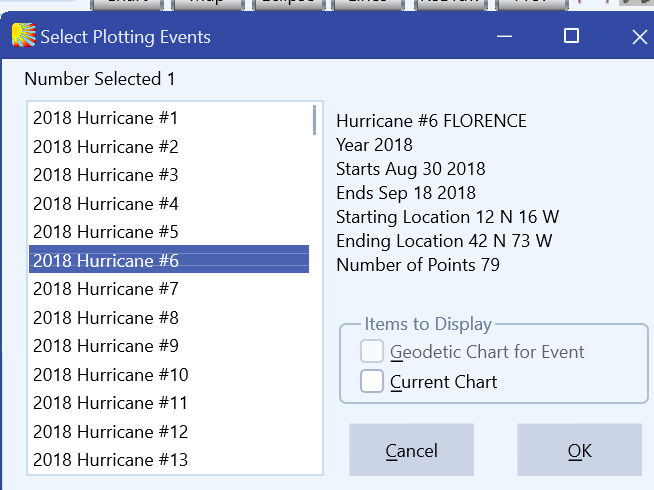
Click on the “OK“ button.
You will then be returned to the main screen of Solar Maps, and the newly selected track will be drawn onto the current map.
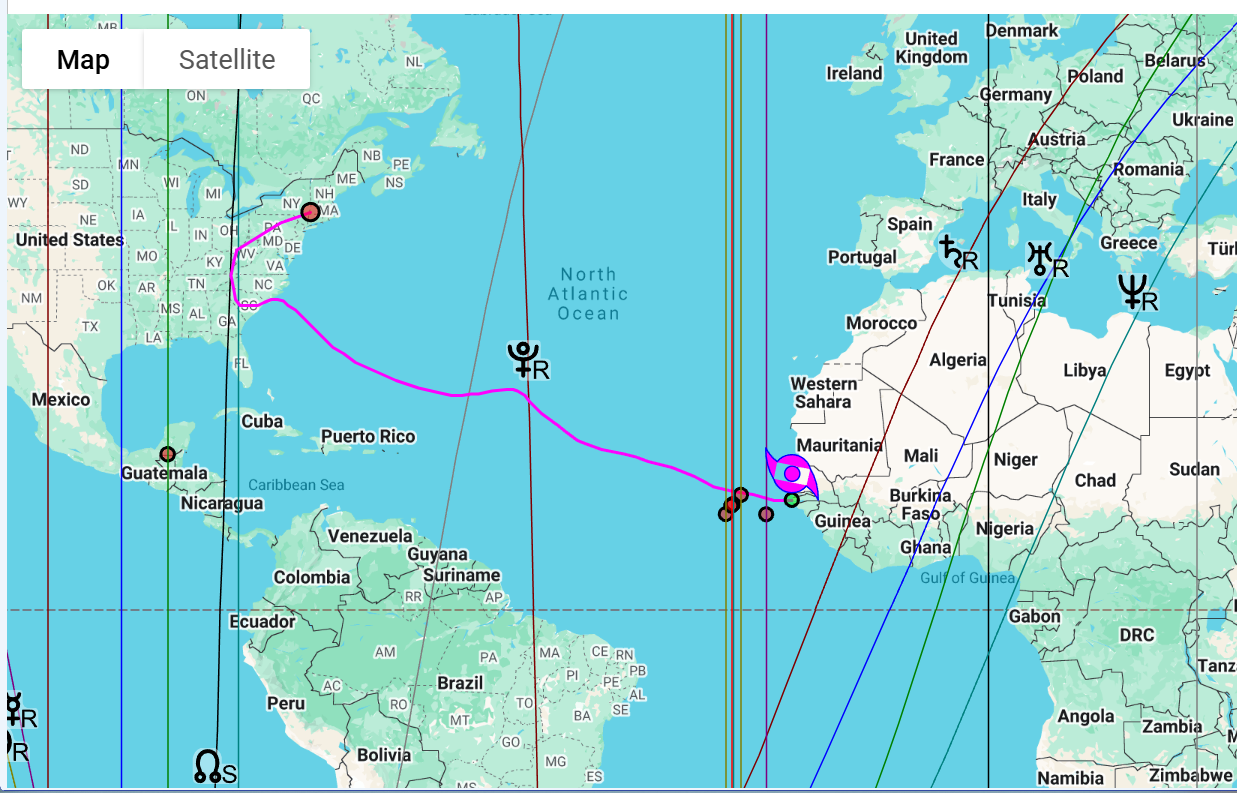
In some circumstances it may be interesting to plot multiple tracks or events. It should be possible to load two at once and then a second one or two. For example, you may wish to plot all the hurricane tracks in a single year, or all the earthquakes in a collection file.
To select two tracks or events at one time:
• Hold down the Ctrl key while clicking on different list entries. If you wish to display more than two, return to the same file and then repeat the process.
You will then be returned again to the main screen of Solar Maps, and all of the selected tracks or events will be drawn simultaneously onto the current map.