The Asp Insp (Aspect Inspector) button opens a window that allows you to enter criteria for creating charts that are formed when any aspect (or any Arc Opening between planets and factors) is formed in both the future or the past. This powerful tool can create charts that work like the material evoked by the Dynamic button with a natal horoscope. The current display chart is returned when you click the Home button.
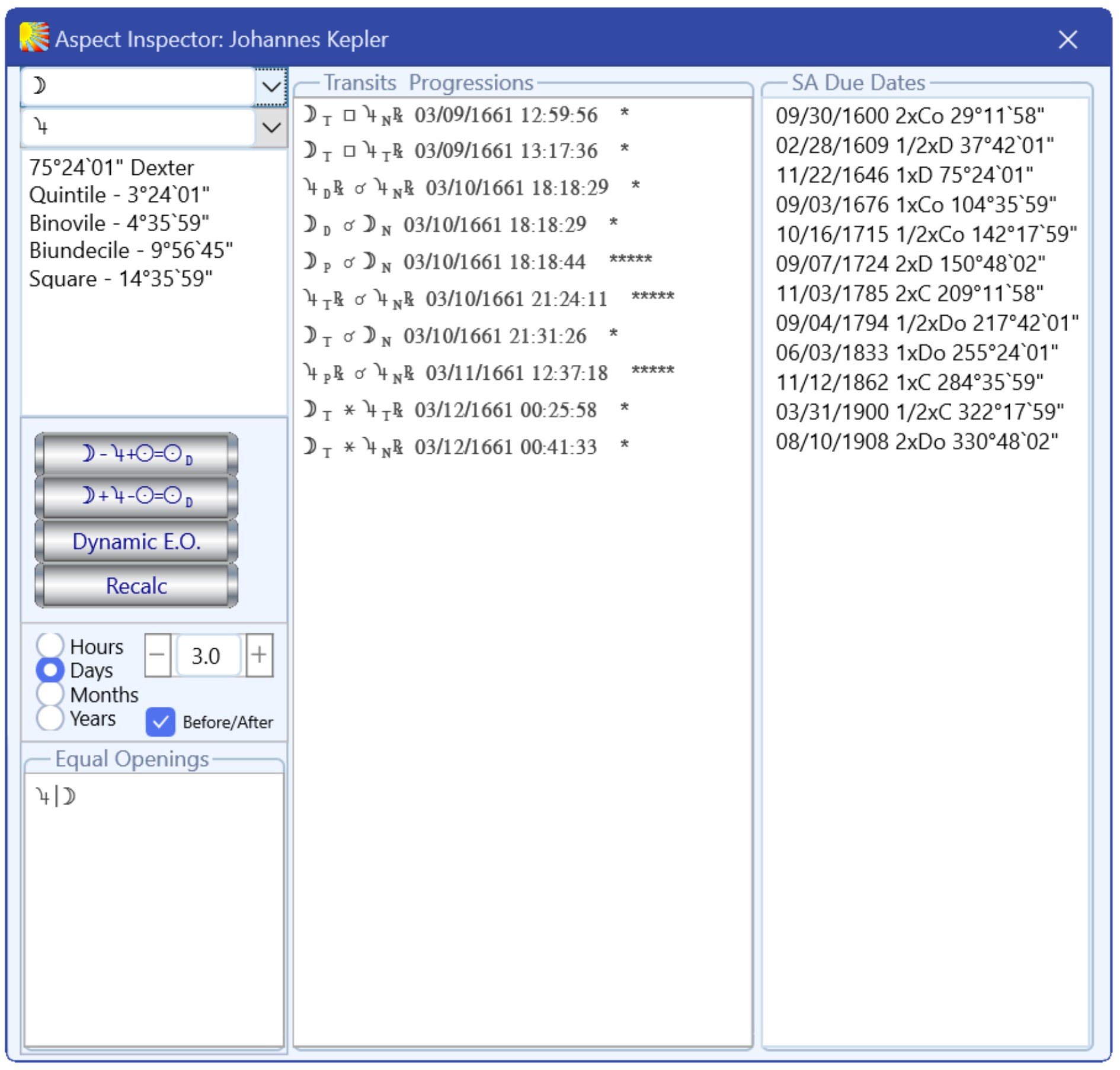
The Aspect Inspector window is controlled by the planets selected in the two marquees on the upper-left corner of the window. They have a drop-down arrow that opens a menu to select what planets (and/or factors) are examined. In this illustration, the Moon is the 1st planet selected and the Jupiter is the 2nd planet selected.
The window below the Planet Selection Marquees has Arc Opening and Dexter/Sinister information. Below this Information line are aspects and orbs about the pair of selected planets.
The first two buttons below the Information Window are unique and we call them the “I’m feeling Lucky” buttons. These two buttons connect the natal and directed Sun to the planets in question and generate the transit chart the completes the formulas the “I’m feeling lucky” button describes.
The Dynamic E.O. (for Equal Openings) is a Window for listing any similar Arc Openings between the displayed planets and transits of the same planets. Recalc recalculates the transits (starting from the data in the Working Data window) between the selected planets and displays information about the aspects they form in the Transits Progressions window (in the center of the Aspect Inspector window). Left clicking on any of the list’s date and information brings this new transit chart up on the dial (hitting Home clears the data from the dial and right clicking (Mac: Ctrl + click) saves the information to the Main Menu’s Retained Charts). The SA Due Dates lists dates and Arc Type when the planets are due by various Solar Arc Types. Left clicking on this data brings up the transits correlated with the SA due dates (hitting Home clears the data from the dial and right clicking (Mac: Ctrl + click) saves the chart to the retained chart list on the Main Menu).
When you invoke the Aspect Inspector, it defaults to the Sun and Moon. Using the drop-down arrow to the right of the windows allows you to select which planets (or factors) to inspect. The order you chose the planets sets the Dexter/Sinister information and the Arc Opening between them (either the shortest Arc or the longest Arc, depending on the order you use to select the factors). In the illustration above, the window below the Planet Selection Marquees is the Information Window. The information in this window shows the Moon and Jupiter selection has its Arc Opening at 75°24’01” and the Moon is Dexter in its relationship to Jupiter. The Moon and Jupiter are 3°24’01” from an exact Quintile, 4°35’59” from an exact Binovile, 9°56’45” from an exact Biundecile and 14°35’59” from being in an exact Square.
Below the Information Window are 4 buttons that respond to a left click. The first two buttons are the “I’m Feeling Lucky” buttons and will calculate a new transit chart when (in the illustration, above) you press the button. It is taking into consideration the natal and directed Sun. The first formula (w-y+qn=qd) places the Dial Pointer at the midpoint of the natal Moon and Sun and subtracts Jupiter, the Dial Pointer goes to a sensitive point and when the directed Sun (Sun + Solar Arc) comes due with this sensitive point, the formula is complete and a dynamic transit chart for that particular date is created. The second “I’m Feeling Lucky” formula (w+y-qn-qd) places the Dial Pointer on the Moon and Jupiter midpoint and subtracts the natal Sun, creating a sensitive point that calculates a horoscope when the directed Sun comes to this sensitive point. The focus of these buttons it to take the two selected planets (or factors) and bring the natal and directed Sun into the formulas that can be timed when the directed Sun comes due with the natal factors connected to the natal Sun and creates the date and corresponding dynamic transit chart. These are powerful times in the native’s life concerning the information of the selected planets (or factors). You can return to the original chart by clicking the Home button. Remember, right clicking the Home button will write the chart information to the Main Menu’s Retained Chart list so you can add it to a chart file to save it.
The Dynamic E.O. button (Dynamic Equal Openings button) calculates new chart data for the Arc Opening between the selected planets and is a phase relationship calculator. In the illustrated example, above, the Arc Opening between Moon and Jupiter is 75°24’04”. When you click on the Dynamic E.O. the Aspect Inspector will search for the next time that the Moon and Jupiter are 75°24’04” apart and list the chart data in the Transits Progressions Window to the right. Many astrologers use this feature with the opening between the natal Sun and Moon for fertility investigations.
The Recalc button relates to the selection below this button. When the Aspect Inspector Window opens, it searches the selected Time Interval by default. You can readjust the Time Interval search parameters by selecting either Hours, Days, Months, or Years. Then you can check the box to choose to search before and after the current date or by leaving this selection unchecked, the search is only forward from the date in the Working Data window. Left clicking on the Recalc button will start the search over with the new parameters. As with anything in Solar Fire, it is wise to keep your search intervals as short as needed, because you may be waiting a long time for proper results due to too many calculations for this feature.
Below the buttons and Time Interval settings is the Equal Openings window. This window displays what planets (or factors), aspect or formula shares an Equal Arc Opening and resonates with the original selected planets. The rule of thumb, here, is wherever you have equal arc openings, you have completed Planetary Pictures between the factors involved.
In the center of the Aspect Inspector window is the Transits and Progressions window. Displayed in this window are the results of the Time Interval Search, the Equal Openings results and the results of a Custom search (for example, results of the “I’m feeling lucky” buttons). The results for the normal search are listed by the selected planet (or factor) aspecting the 2nd selected planet. The subscripts, N, T and P refer to Natal, Transiting and Progressed planets (or factors). Each of these listings are followed by the date and time they are due. If you 2x left click on any of the results, single disk transits for the selected event will populate the Dial Grid with the natal.
If you do a Dynamic E.O. search, the results are listed and sensitive to left click. Left clicking an entry populates the Dial Grid with the Transits for the date and time of the events. The location for these (and the above examples) transit listings is taken from the Working Data (WD button) settings.
The window on the right-hand side of the Aspect Inspector window is called SA Due Dates (Solar Arc Due Dates) and lists transits when the selected planets are due to each other by various permutations of the Solar Arc. Left clicking will activate the directed planets and factors on the inner Dial Grid.
Left clicking on the Home button will return the chart to its original state (double clicking in succession will also clear any added points) or right clicking (Mac: Ctrl + click) on the Home button will save any newly created chart created from the use of the Aspect Inspector to the Retained Charts window on Solar Fire’s Main Menu if the chart is on its own ring.