The "Page Style Browser" is a dialog that contains a list of displayable wheels and pages, categorized into various topics in a list. You have the ability to select pages from this list to view or preview, and to enter the Page Designer from here.
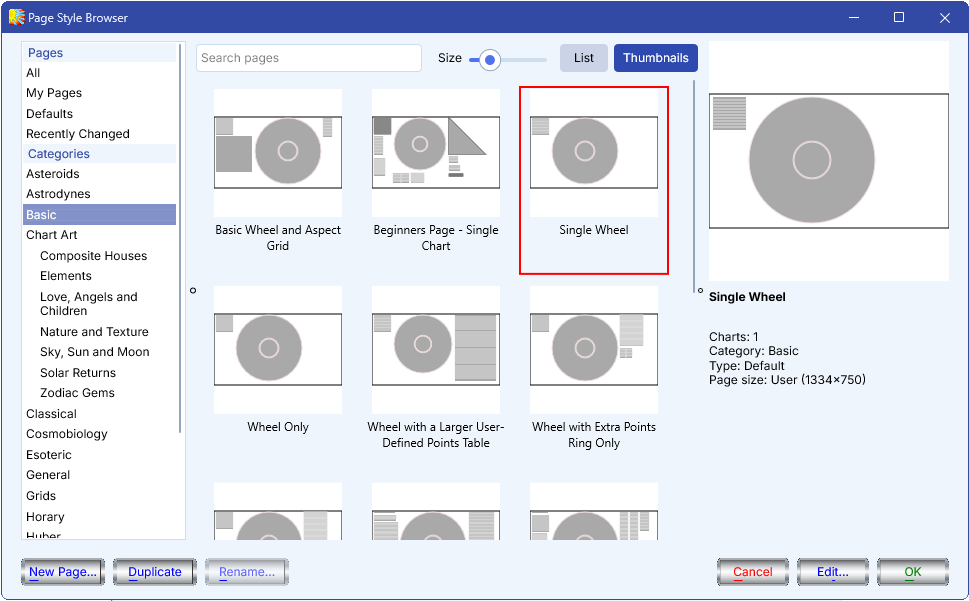
•Cancel – closes this dialog without selecting a page.
•Edit… – opens the highlighted page for editing in the Page Designer.
•OK - selects the highlighted page and closes the dialog.
>> To add a new topic category
•Click on any topic category name and use the right hand mouse button to display a pop-up menu, and select Add New Category.
This will display a dialog allowing you to enter the new category name.
>> To rename a topic category
•Click on the topic category name and use the right hand mouse button to display a pop-up menu, and select Rename Category.
This will bring up a new dialog box called Rename Category and allow you to edit it.
>> To move a page from one category into another
•Simply drag the page description onto another topic category name.
If the topic category you wish to move to is off the top or bottom of the page, then drag the page off the top or bottom of the list. This will cause the list of pages to collapse, and scroll up or down respectively, thus making the required target topic category visible.
>> To copy a page from one category to another
•Hold the Shift Key on the keyboard down while you drag the page description onto another topic category name.
Note: Sometimes you may wonder where new pages are located that were created in the Page Designer, or simply added externally to Solar Fire by placing Page files (.pag) in the Pages subfolder of the Solar Fire User Files folder, have gone to, and have trouble finding them in the Pages list box. Each time the Pages list box is accessed it checks for all new pages added to the Pages subfolder since it was last used. Any pages found that are of the "Chart Art" type are automatically moved to the Chart Art category, and other new pages are moved to the Recently Changed category.
>> To refresh the list of pages after creating a new page or editing a page title
•Use the F5 key.
This is the standard Windows and Mac key for refreshing lists of files.
•Function keys on a Mac: On the Mac, you may have to change the settings to use the F1 key and other function keys in this way. Choose Apple  menu > System Settings then click Keyboard in the sidebar. (You may need to scroll down.) Open Keyboard settings. Click Keyboard Shortcuts, then click Function Keys in the sidebar. Turn on “Use F1, F2, etc. keys as standard function keys.”