"Pages" in Solar Fire are viewable pages that can show one or more charts and other astrological data in ways that are not possible from any of the other display options in Solar Fire. Pages all start off as a blank page that information has been added to. This can be a small or large amount of information, and it can be arranged in a free-form way to be however it is wanted. These customizable pages are therefore very flexible. For example, a page may display a single wheel in a non-standard scaling and positioning, or may display multiple wheels, grids or tabulations on a single page.
Solar Fire also comes pre-supplied with a variety of pages already created for you, and you can use these pages immediately. You can also change the appearance of these pages, or if you prefer you can create your own pages; either by editing a copy of one of the pre-supplied pages, or creating pages of your own from scratch.
See the advanced topic Editing a Page Design File to see how to create and edit pages, and what information can be used to create a page.
>> To view any page
From the Main Screen:
•From the View menu select Page Style Browser.
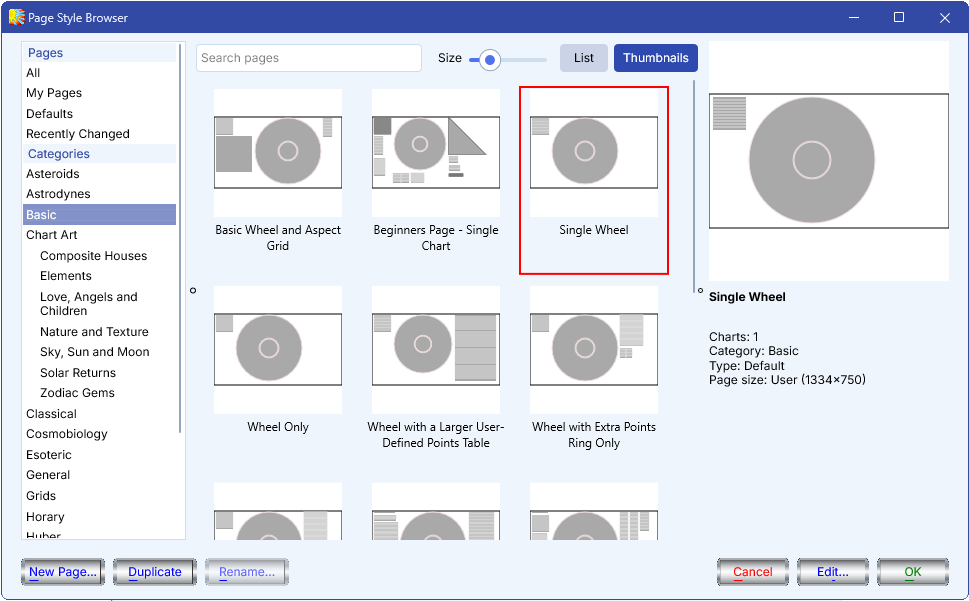
This will display the Page Style Browser dialog box, listing all available page layout files categorized by topic. If you select a page layout file that displays the same number of charts as are already selected in the list of "Calculated Charts" on the Main Screen, then click the OK button, it will display the "Chart Selection" screen, which allows the charts to be selected prior to viewing the page.
From the "View Page" window:
•Select the Page Browser button.
This will display the “Page Browser” dialog box, listing all page layout files that use the same number of charts as the currently displayed page type. When you have chosen a page layout, you have the option of selecting the Edit button to enter the Page Designer, or selecting the OK button that will create a new image and close the "Page Browser" dialog.
>> To view four of the most recently viewed page types
From the Main Screen:
•From the list in the View menu underneath the User Defined Page option, select the name of the required page.
This list is empty the first time you run Solar Fire, but is updated each time you view a user-defined page, and is retained from one session on Solar Fire to the next.
NOTE: When in the View Chart window, in the upper right hand corner, there is also a running list of the chart types that you have recently viewed, using abbreviations such as Uni 1, Grid 3, Ext 3, Bi 2 3, etc. Clicking any of them will bring up the chart again in the View Page window that you are already viewing.
You may change the appearance of any existing pages, and new pages may be created from scratch. See Editing a Page Design File for more information.