The Synastry button allows you to set up a selection of two charts from the File Manager to be displayed on the Dial. You can display them as a Dual Disk style setup or as a single Composite chart.
When you select Synastry, the Synastry Window appears and has the last selected chart’s data in the upper left-side window. To the right is the Retained Charts window which shows any previously selected charts from the retained list in the Main Solar Fire Window. Below is a Selected Charts window where you can select from the Retained Charts window which charts to view and combine and what ring to display them on. To the right of the Selected Charts window is a button named Load Charts (with a Control L shortcut) which will call the current Chart File from the Chart Manager for further selection of horoscopes for the Charts window, above. Below the Load Charts button is a Clear button (with a Control C shortcut) that removes any charts in the Selected Charts window. On the bottom row is a Quit button (with a Control Q shortcut) that closes the window. On the right is a Reports button (with a Control R shortcut) that calls the Chart Reports selections (same as the button on the right-hand list with the same name) for further investigation into either chart. To the right is a Print button (with a Control P shortcut) to print out the Synastry. To the right of the Print button is the View button (with a Control V shortcut) to send the selections to be displayed on the Dial.
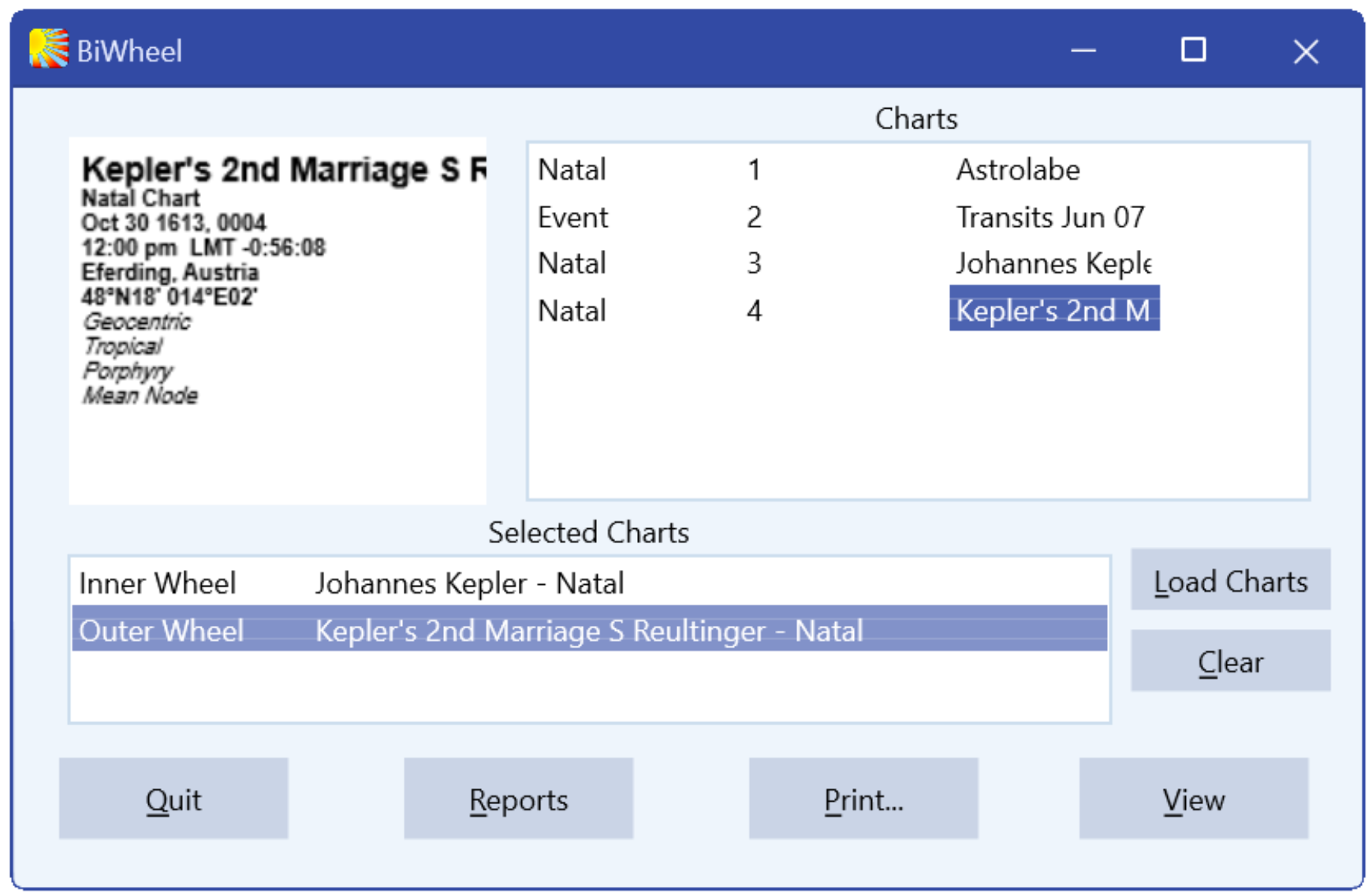
The Synastry Window allows you to select two charts to be combined or compared on the Display Dial. When you left click on the line marked Inner Wheel you can select a chart in the Retained Charts window, above. The highlight moves down to Outer Wheel for the next selection from the Retained Charts window, above. Once you have made your selections, (normally) you would click on the View button to setup the charts display on the Dial.
Once you have selected the Synastry button, the Synastry Window appears and you can use the Load Charts button to select charts to populate Selected Charts window listed in the Retained Charts window. When you have selected which charts to compare, left click on either the blank Inner Wheel or Outer Wheel and once highlighted, select your first chart from the Retained Charts list, above. Then select the second chart and left click on View. Once you have setup the Dial Display by left clicking the View button, a Composite button appears above the Search button. This is a toggle to select the Dial Display to show the two charts as a BiDial that occupies two rings for straight forward synastry or a Composite chart that acts and looks like a single chart. When the BiDial is selected the I/I, I/O, O/O, and ALL toggle button selections appear. Toggle this button to select which rings you can make pictures and other combinations.