The WD button (for Working Data) opens a window that contains the information used by the dynamic selections (transits, progressions and directions), ingresses and return charts.
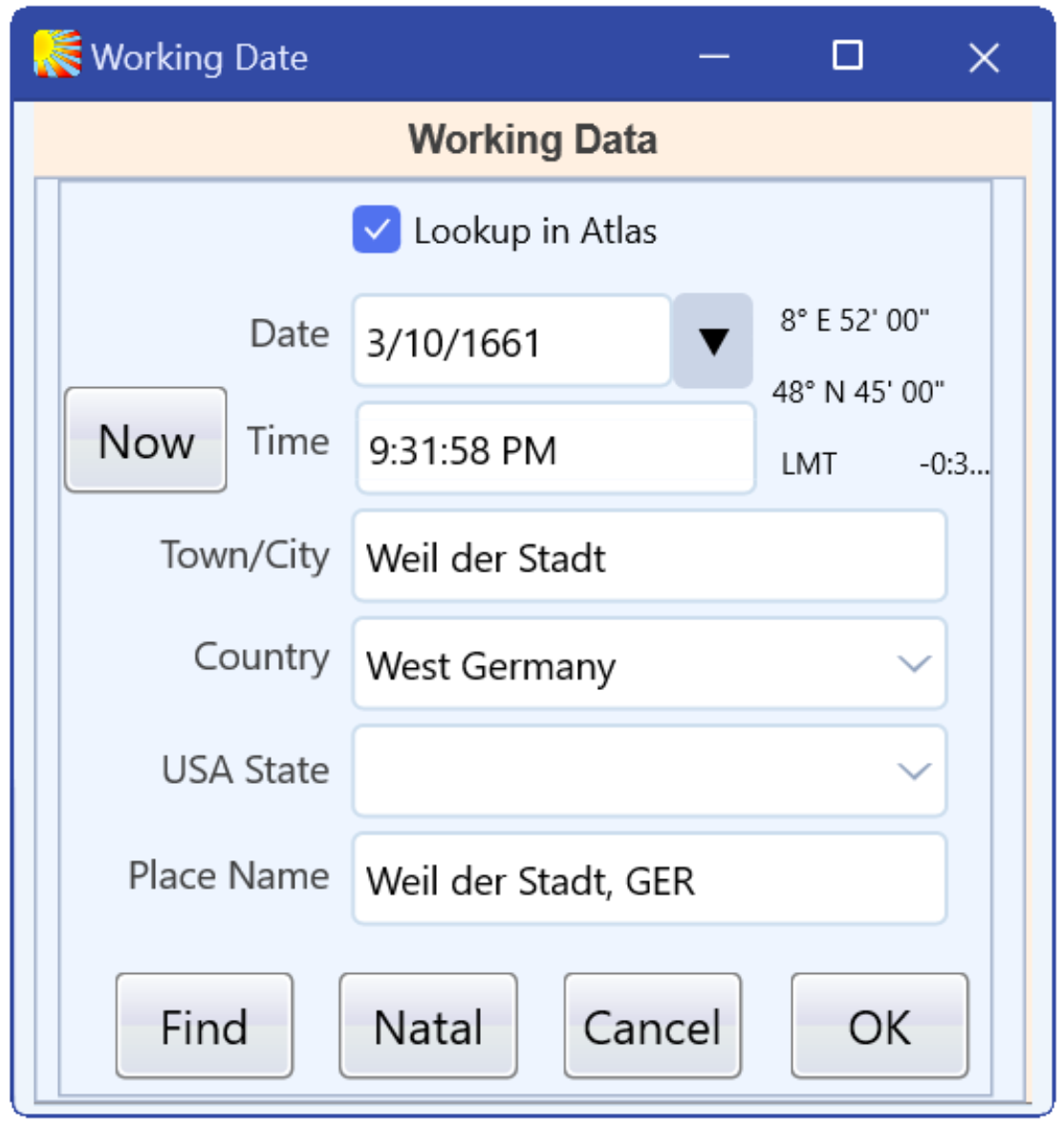
The Working Data Window has the information needed for the calculation of dynamic material, ingresses and returns.
When this window is in its default mode, the data mirrors the natal location data with the current date and time. If you are doing work where the current chart is not at the natal or chart origin’s location, this is the place where you can adjust your default data for many uses. The Date marquee defaults to the current Date and Time (Time is in the marquee below) and you can change it as needed. To the right of the Date marquee is a down arrow that opens a calendar to help locate a specific date. To the extreme right is the latitude and longitude of the currently set location. Below this line of information is a Now button. When you left click this button, the current system defaulted Time and Date is inserted into the Date and Time marquees. Below Time is Town/City whose default can also be overwritten to any place on Earth. Beneath Town/City is Country which has a drop-down button on the right side of the marquee for helping select the Country name. If the location is in the USA, then the USA State marquee also has a drop-down menu for US state abbreviations. The lowest marquee repeats the entered information so you can verify the input.
Setting this window controls all of the dynamic data. This is quite important regarding Return charts as well as transits and other material. Return Charts are horoscopes created by planets that cross their natal location or an aspect to it. We often create Solar Returns or Lunar returns, but you can create any planetary return. Normal Returns will always be calculated using the next Return after the posted Working Data dates and locations. You can also create Returns going backwards from the Working Date. To create a Return, place the Dial Pointer on the Planet in question or in an aspect to it. Press the Control key and then select the planet and hold down the mouse button while dragging the selection literally into the Red Dial Pointer and releasing the mouse button and then the Control key. The display will recalculate creating the Return chart or the chart of an aspect to it and the date will be the first date after the Working Data information. If you hold the Control Key down with the Shift key held down at the same time, the Returns will be calculated going backwards in time from the Working date information instead of the normal going forward in time. You can manipulate this chart and save it to the Retained Chart Files by right clicking (Mac: Ctrl + click) the Home button. When you left click the Home button the display reverts to the original horoscope.
Besides Solar and Lunar Returns, you can do a Return for any planet or aspect to it. For example, the next Neptune Return in Kepler’s horoscope occurs on July 12, 2062, at 11:04:16 AM at Weil der Stadt, Germany. If we repeat the Return technique for Neptune, the next Neptune Return is calculated moving forward in time. This way we can repeatedly move Return charts into the future. If we want to look at a section of history, you can add the Shift key to the operation and create Returns going backwards in time. You can always adjust the Working Data appropriately for your calculations to find specific periods of time.
There are four buttons lining the bottom of the Working Data window. The Find button, when left clicked, will perform an ACS Atlas lookup and report the placename and any alternative locations and the province they are in so you can select from any ambiguities in the listing. Left clicking Natal fills in the marquees with the input information from the Displayed Chart. Cancel and OK allow you to accept or reject the presented data.