The Dial can be moved manually, responds to the use of a mouse wheel, or can be controlled with the Up/Down arrows on the lower left of the screen. When the Dial is moved the planets and other factors remain locked in place. This allows you to use the Dial as a protractor to measure aspects and symmetrical combinations (as well as many dynamic functions).
To move the Dials, place the cursor on the Dial and left click. The pointer will relocate to where you clicked. If you left click without releasing the click (holding the mouse button down) you can rotate the Dial manually to any location when you release the click. Outside the grid, if you click on a planet or other factor (like a house cusp or one of the signs), the Dial Pointer will line up to that planet or factor. When a factor is selected on the Dial, the cursor turns into a small hand.
The 360° dial initial position is with the Red Dial Pointer on the Cancer sign at the top of the chart. The dial must be returned to this orientation by left-clicking the Cancer sign to correctly view the zodiacal placements of all chart factors.
In Uranian Astrology, the signs on the Dial are also treated like house cusps. They treat the positions of the planets and factors in the Zodiac as being in the Houses of the Earth or Earth Houses. In this scheme, Cancer is considered representative of the Tenth House and Leo, the Eleventh House. Libra becomes the First House, Capricorn the Fourth House, etc. This way you can use the Dial to create an Equal House system around any planet or factor. So having the Ascendant in Taurus places it in the Eighth House of the Earth Houses or Taurus natively, but you can place the Ascendant as the Cusp of First House by locating the Libra Pointer on the Ascendant and creating an Equal House structure with the Ascendant as the cusp of the First House. You can also locate any planet or factor as a 1st, 4th, 7th, or 10th house starting point. To bring up this menu, right click (Mac: Ctrl + click) on the planet or factor (In this case, Jupiter) and you will see:
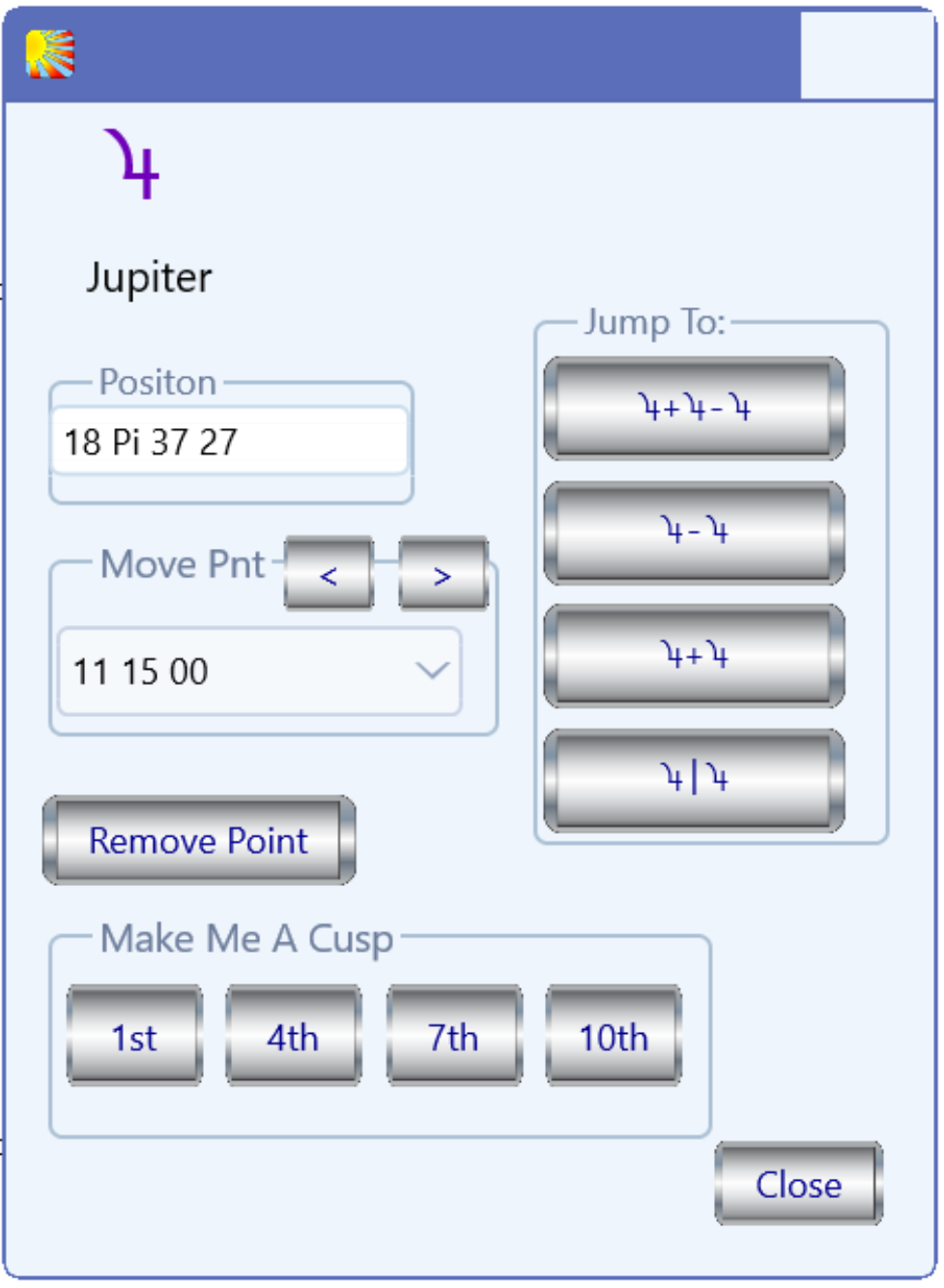
While we will examine this window in greater detail, note the bottom listing under “Make Me A Cusp” and clicking on any of these switches will place the correct pointer on the planet or factor in question. The rest of the switches in this window will be explained below.
When you right click in the Dial (Mac: Ctrl + click) or anywhere else on the screen, the Options window opens. This is the same window that is evoked by the button labeled Options on the lower left side of the Dial Display Window. See The Options Button for details on how the Option button operates.